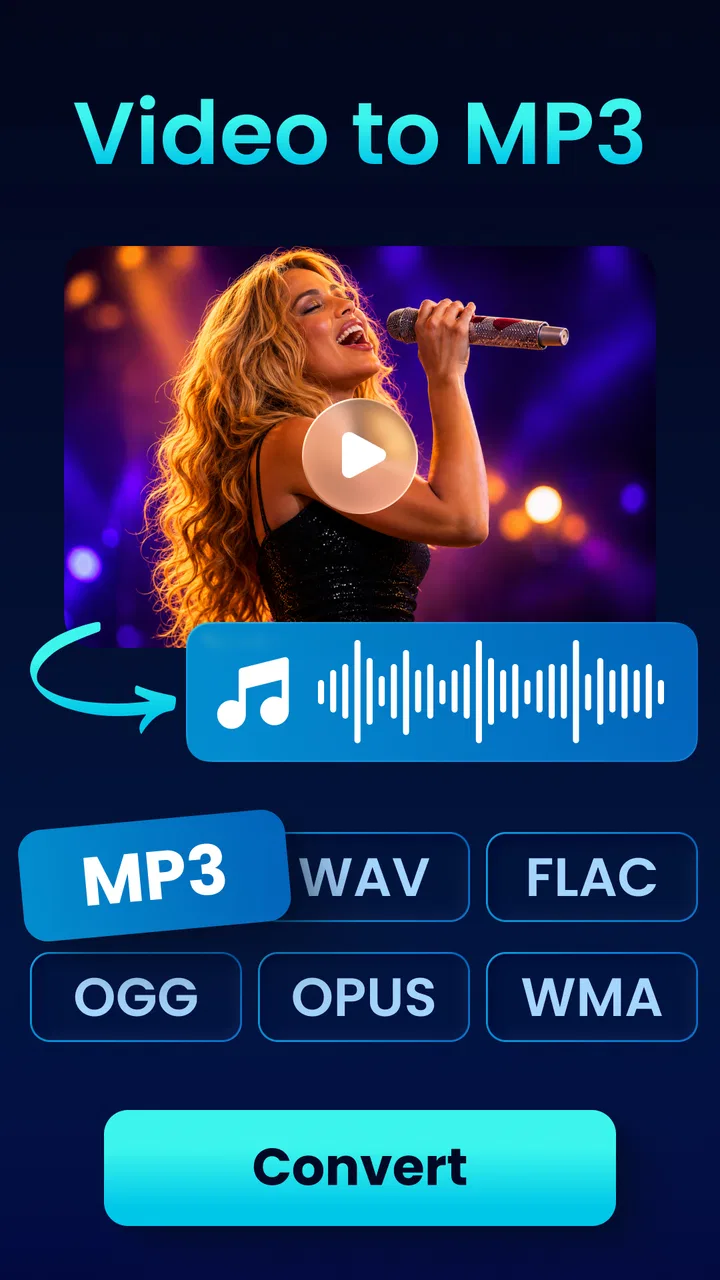
Video to MP3 Converter App
- 4.7
- Rating
- 5.00M
- Installs
- Free
- Price

 Analysis by App-foxy
I often need to pull the audio out of a video without opening a full desktop editor, and Video to MP3 Converter App is built for exactly that small but useful job. It is a free Android app from o16i Apps in the Music & Audio category, with tools for converting video into audio, cutting video, trimming audio, and working with MP3 files. After spending time with its workflow, I see it as a practical utility rather than a complete music studio: quick for everyday conversions, approachable for casual users, and more limited when a project demands detailed editing.
The app is available to Everyone and supports Android 7.0 or later, which makes it accessible on a wide range of devices. Its current version is 1.3.8, and the large audience around it is reflected in a 4.7 average from roughly eighteen thousand ratings, alongside more than five million installs. Those figures do not replace personal testing, but they do suggest that the basic idea is easy for many people to understand. My own recommendation is similar, with one important condition: it works best when you treat it as a focused converter and trimming tool, not as a replacement for a professional audio editor.
How the conversion workflow feels in everyday use
The first thing I noticed is that the app’s purpose is immediately clear. You choose a video, move toward an audio output, and use the trimming tools when you only want part of the source. That directness matters because many media apps bury a simple conversion behind a crowded collection of menus. Here, the useful path is centered on turning a video file into an audio file, which makes it suitable for people who do not want to learn a complicated editing program.
You May Also Like

 Blood Strike: 2.5 Anniversary
Blood Strike’s Loadouts Turn Every Drop Into a Tactical Gamble
A close look at Blood Strike’s custom loadouts: how fast access to signature weapons reshapes its battle royale rhythm, rewards preparation, and narrows the gap between fights.

 Pandora - Music & Podcasts
Pandora’s Music Is Easy to Start, but Harder to Recover
Pandora’s strength is its low-effort path from a seed to a station. Its weak spot is how much confidence it asks you to place in connection, setup, and quiet recovery.

 8 Ball Pool
 Is Built on Rivalries, Rematches, and Routine
A close look at the rivalries, rematches, shared routines, and unanswered safety questions that turn a quick pool match into a persistent mobile community.

 Samsung Music
’s Quiet Strength Is Playing What You Already Own
Its reach comes less from spectacle than from dependable access to a personal library. That simplicity is both the app’s strongest retention engine and its ceiling.

 AccuWeather: Weather Radar
AccuWeather Review: A Quick, Clear Forecast for Everyday Decisions
For everyday plans, the best forecast is the one you can understand quickly. AccuWeather makes rain timing, radar, and local conditions easy to act on, with a few trade-offs.

 Hill Climb Racing
Why Hill Climb Racing Still Turns Crashes Into One More Run
A tiny car, a bumpy hill and one more upgrade: Hill Climb Racing keeps resurfacing because its simple chaos makes every near-miss feel personal.
More From Our News Desk



For a normal clip, the process feels like something I could complete during a short break. I would select a saved video, decide whether I want the entire soundtrack or only a section, and then start the conversion. The video cutter is especially helpful when the original file contains a long introduction, an unnecessary ending, or a quiet stretch that I do not want in the final audio. Instead of exporting everything and editing again elsewhere, I can make that decision before finishing the job.
That simple sequence also reveals the app’s main strength: it reduces the number of steps between a video already on my phone and a usable audio file. Someone making a personal listening copy from a recording, extracting spoken material for offline reference, or preparing a short sound clip can understand the workflow without much experimentation. The app’s short description says “Video to MP3,” but the practical value is the combination of conversion and basic cutting rather than conversion alone.
In my experience, perceived speed depends heavily on the source video and the phone handling it. A short clip should be a much lighter task than a long, high-quality recording, and the app’s interface does not change that underlying reality. I would not judge it by expecting every conversion to finish instantly. The useful expectation is that a straightforward file should not require a full editing session, while a demanding source deserves patience.
One tip I found valuable is to decide on the section before starting the export whenever possible. If I already know that I only need a particular speech, chorus, or sound effect, trimming first keeps the final file focused and avoids creating a larger audio file than necessary. This is more than a convenience: it can make later sharing and playback easier, especially when the converted audio is intended for a single purpose rather than archiving the whole video.
Where it saves time, and where it does not
Video to MP3 Converter App is at its most efficient when the input is already stored locally and the desired result is uncomplicated. It is not trying to organize a large music library, repair damaged recordings, or replace a multitrack editor. If I need to combine several sources, apply detailed effects, balance separate tracks, or make precise production decisions, I would choose a more specialized audio workstation instead.
The app’s trimming tools are useful for preparation, but I would not confuse them with full waveform-based editing. For a quick beginning-and-ending adjustment, they make sense. For detailed work where every small transition matters, a dedicated editor gives better control. That distinction is important because the app can feel fast precisely because it keeps its scope narrow. A broader tool may take longer to learn but provide more options once the basic conversion is no longer enough.
There is also a practical trade-off around output expectations. A conversion tool can place audio in a more convenient format, but it cannot create detail that was never present in the original video. If the source has muffled speech, heavy background noise, or compressed sound, extracting it will not automatically restore quality. I would therefore use this app to change the form of existing media, not to improve the recording itself.
For an everyday example, imagine recording a community talk on video and wanting to listen to the spoken content while walking. I would use the cutter to remove the few minutes before the speaker begins, convert the useful portion, and keep the resulting audio for playback. That workflow is more sensible than importing the whole recording into a desktop editor when the only real goal is convenient listening. It also shows why the app belongs on a phone: the task is small, specific, and easier to complete close to where the video was captured.
What happens during heavier jobs
The experience changes when I move from a short clip to a long or demanding video. Conversion is then no longer just a quick tap; it becomes a processing task that may take more time and place greater demands on the device. I would avoid starting a large export while relying on the phone for something urgent, particularly if the battery is already low or the device has limited free storage.
Storage is an easy detail to overlook. The original video remains important during the workflow, and the new audio file needs room as well. A phone with very little available space can turn an otherwise simple conversion into a frustrating exercise. Before processing a large source, I would check storage, close unnecessary activity, and make sure the original file is not being moved or deleted until I have confirmed that the audio result is usable.
That last step is one of my strongest practical recommendations: listen to the converted file from beginning to end before removing the source video. It takes a little longer, but it protects against discovering later that the wrong clip was selected or that the chosen trim did not match the intended section. A converter is only useful when the finished audio is the right file, and a quick verification is much cheaper than repeating the entire task after the original has disappeared.
Heavy use is also where the difference between a utility and a full production app becomes clearer. If I wanted to process a batch of videos, name and categorize a large collection, or maintain consistent audio settings across many exports, I would prefer a tool designed around library management or desktop automation. This app is better suited to one-off jobs and small personal projects where I can review each result as I go.
I would also be cautious about treating it as a background processing solution. My sensible workflow is to keep the app open while a conversion is underway and avoid switching constantly between demanding applications. That is not a claim about a particular device or operating system behavior; it is simply the safer way to handle media processing on a phone. If a job matters, I would let it finish before moving on.
Reliability and recovering from a mistake
Reliability, for me, is not only whether a button starts a conversion. It also means being able to understand what happened when the result is not what I expected. The focused design helps here because there are fewer creative decisions to lose. I can usually trace a problem back to the selected video, the chosen section, the destination, or the source itself rather than searching through a maze of advanced settings.
My preferred recovery routine is deliberately simple. I keep the original video, check that I selected the intended file, review the trim points, and run the conversion again if necessary. When the source is long, I would first test a shorter section. That small trial can reveal whether the workflow suits the file before I commit to a larger export. It is a useful way to reduce wasted time and avoid repeatedly processing a source that does not produce the kind of audio I need.
The app is also easier to trust when I use it for clearly defined personal tasks. For example, extracting a spoken reminder from a video or cutting a short passage for private playback is a straightforward use. I would be more careful with material that has copyright restrictions or sensitive content. The technical ability to convert a file does not automatically grant permission to redistribute it, so I would keep ownership and sharing rights in mind before sending the result to anyone else.
One non-obvious advantage of trimming before conversion is that it gives me a second chance to notice whether the source is actually suitable. A long video may contain silence, music, conversation, or several unrelated segments. Looking at the intended portion first helps prevent the common mistake of assuming that every video will become a useful audio track simply because the conversion itself succeeds.
There is a financial detail worth keeping in view. The app is free to install and use as a basic option, but in-app purchases range from ninety-nine cents to ninety-nine dollars and ninety-nine cents per item. I would therefore check any purchase screen carefully before confirming an optional transaction, especially if I only need occasional conversions. For a user who wants a no-cost utility for sporadic tasks, the free starting point is attractive; for someone seeking a completely purchase-free experience, the presence of optional paid items may affect the decision.
Device limits and choosing the right alternative
Support for Android 7.0 or later means the app can fit older phones that are still in everyday use, but operating-system support alone does not determine how comfortable media processing will feel. The age, storage, memory, and general condition of the phone all influence the experience. On a newer device, I would expect the focused workflow to feel more comfortable during ordinary jobs. On an older or crowded phone, I would plan around longer processing and limited space.
I would also avoid starting with the largest file available when using the app for the first time. A short, unimportant video is a better test because it lets me learn the selection and trimming flow without risking an important recording. Once I know where the output goes and how the result sounds, I can move to longer sources with more confidence. This approach is particularly useful for people who are not accustomed to working with media files on a mobile device.
Compared with the usual alternatives, the app sits between a basic file converter and a full editor. A desktop video editor is the better choice when I need visual timeline control, several tracks, detailed transitions, or a repeatable professional workflow. A dedicated audio editor is stronger for noise reduction, effects, fades, and precise sound design. A file-management app may be better for organizing many finished recordings. Video to MP3 Converter App wins when the job starts with a video and ends with a trimmed audio file, with as little ceremony as possible.
That comparison also identifies who should skip it. I would not recommend it as the main tool for musicians producing polished releases, podcasters who need cleanup and mixing, or anyone managing a large catalog of conversions. It may also be a poor fit for a person who expects advanced control over every technical aspect of an export. Those users are better served by software built around editing depth rather than quick extraction.
On the other hand, I think it is a good match for students, travelers, casual creators, and anyone who often receives or records videos but wants to listen to their sound separately. It is also useful for people who dislike moving files to a computer for a task that can be completed on the phone. The Everyone age rating reinforces its broad accessibility, although younger users should still follow sensible rules about sharing recordings and using other people’s content.
My performance verdict after using the app
My overall impression is that Video to MP3 Converter App succeeds by staying focused. It gives me a practical route from video to audio, adds a cutter and an audio trimmer for basic control, and avoids making a small job feel like a production project. The perceived speed should be good for ordinary short clips, while long or demanding files naturally require more time, storage, and attention. I would describe it as lightweight in purpose rather than promise a specific resource profile that can vary from one phone to another.
Stability is best approached through a careful workflow: use a local source, leave enough storage, keep the original until the result has been checked, and avoid treating a large batch as if it were a single quick conversion. Those habits make recovery easier when a selection or trim is wrong. They also expose the app’s limits honestly instead of hiding them behind unrealistic expectations.
With a 4.7 average and more than five million installs, it has clearly found an audience, and I can understand why. The app is free to start, supports Android versions reaching back to 7.0, and comes from o16i Apps with a current version of 1.3.8. I would still remember that optional in-app purchases can run from ninety-nine cents up to ninety-nine dollars and ninety-nine cents per item, so I would review the purchase flow rather than assume every capability is included without conditions.
My recommendation is simple: choose it when you want a convenient, phone-based way to extract and trim audio from a video, and skip it when you need serious sound editing or large-scale media management. For the right task, it feels direct and useful. Its strongest quality is not an abundance of features, but the time it can save when the desired result is modest, clear, and needed immediately.
FAQs for Video to MP3 Converter App
01What is Video to MP3 Converter used for?
Video to MP3 Converter is designed to extract audio from video files and save it as an MP3 or another supported audio format. It can be useful when you want to listen to music, speeches, interviews, lessons, or other sound content without keeping the original video. The app generally works with videos stored on your device, depending on its supported file types and permissions.
02How do I convert a video into an MP3 file?
After opening the app, you normally select a video from your device gallery or file manager, choose MP3 as the output format, and adjust available options such as audio quality or bitrate. Tapping the convert button starts the process. The finished file is usually saved in a dedicated folder or shown in the app’s conversion history, where it can be played or shared.
03Does Video to MP3 Converter support all video formats?
Support for video formats can vary between versions and devices. Common formats such as MP4, AVI, MOV, and MKV are often accepted, but some files may fail if they use uncommon codecs, encryption, or unsupported audio tracks. Before downloading, check the app’s current store description and test a short file first if you regularly work with less common video formats.
04Is Video to MP3 Converter free to download and use?
Many Video to MP3 Converter apps can be downloaded at no cost, but free versions may include advertisements, conversion limits, watermarks in related features, or optional in-app purchases. The exact conditions depend on the developer and platform. Review the pricing information, subscription terms, and permissions shown on Google Play or the App Store before starting regular use.
05Can I convert videos downloaded from the internet or streaming services?
The app may convert compatible video files that are already stored on your device, but it does not necessarily download or bypass protection from streaming platforms. Videos protected by DRM, encrypted content, or services that restrict copying may not work. You should also convert only files you own or have permission to use, respecting copyright laws and the provider’s terms.
Pros
- Converts videos into MP3 audio files quickly
- Supports extracting audio from locally stored videos
- Simple interface suitable for first-time users
- Lets you choose output quality and audio format
- Useful for creating audio files for offline listening
Cons
- Some features may require in-app purchases
- Conversion speed depends on video length and device power
- Free version may include advertisements
- Output quality cannot exceed the original video’s audio quality
- Requires storage space for both source videos and converted files

Video to MP3 Converter App
Gallery